
When someone searches for a local business on Google, the first results they see are often a map with three businesses below it. Those listings come from Google Business Profile. For many small businesses, the profile brings in more calls and visits than the website itself.
Setting one up is free and takes less than an hour. Getting it right from the start matters, though. A profile with the wrong name, category or address can be hard to fix later and can even be suspended. This guide walks through every step.
Before You Start
Have these ready before you begin:
- A Google account you will keep for the long term. Ideally use an address on your own business domain, such as name@yourcompany.com, rather than a personal account.
- Your real business name, exactly as it appears on your signage, website and paperwork.
- Your address, if customers visit you, or the list of areas you serve if you go to them.
- Your main phone number and website.
- A few good photos of your premises, your team and your work.
Check If Your Business Is Eligible
Google Business Profiles are for businesses that make in-person contact with customers during their stated hours. That includes shops, offices and clinics that customers visit, and service businesses such as plumbers or cleaners that go to customers.
Online-only businesses are not eligible. If you run a business from home and visit customers, you can still create a profile, but you should hide your home address and show your service areas instead.
Step By Step: Create Your Profile
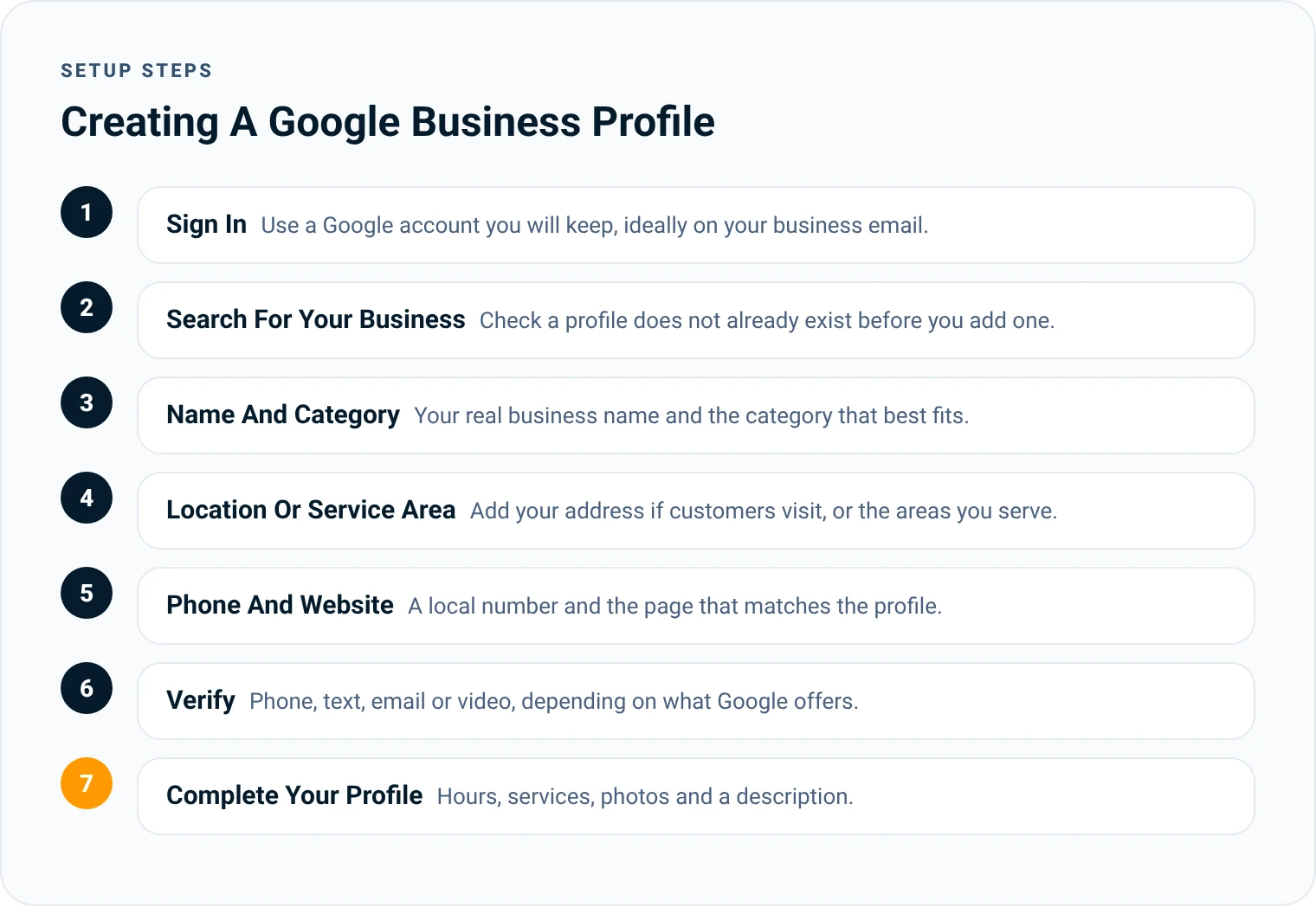
- Sign in. Go to business.google.com and sign in with the Google account you want to manage the profile with.
- Search for your business. Type your business name. If it appears in the list, a profile already exists. You should claim it or request access rather than create a second one.
- Add your business name. Use your real name only. Do not add services or locations to it.
- Choose your primary category. Start typing what you do and pick the closest match. This is one of the most important choices you will make, because it tells Google which searches to show you for.
- Add a location or service area. If customers visit you, add your address. If you visit them, choose the option to hide your address and list the towns or regions you cover.
- Add your phone number and website. Use a local number if you have one, and link to the page that best matches the profile.
- Verify your business. Google needs to confirm that you manage the business before your profile goes fully live.
How To Claim A Profile That Already Exists
Google often creates listings for businesses automatically, from public information or from suggestions made by customers. If your business appears when you search at business.google.com/create, you should claim that listing instead of creating a new one.
Select the business from the list and follow the steps. If nobody manages the profile yet, you will be asked to verify it, just like a new profile. If someone else already manages it, Google lets you request access. The current owner is notified and has a few days to respond.
If the request is ignored or declined, Google may give you the option to verify the business yourself. Former employees, old agencies and web designers are the most common reasons someone else controls a profile, so it is worth asking them first. Once you have access, make sure the primary owner is an account your business controls, not a person who might leave.
How Verification Works
Google decides which verification methods your business can use, and you cannot change them. The options depend on your category, your region, your public information and other factors. You may also be asked to use more than one method.
The methods Google currently offers include:
- Phone or text: A code is sent to your business phone number.
- Email: A code or link is sent to your business email.
- Video recording: You record a short video showing your location, signage, tools or equipment and proof that you manage the business.
- Live video call: A Google support representative checks the same things on a call.
- Postcard: A code is posted to your address. Google says this is not available for all businesses.
For a video recording, plan it before you press record. Show the outside of your premises or your branded vehicle, your signage, the inside of your workspace and something only the owner would have, such as keys to the front door or business paperwork.
SEO is won by brands that are credible and trustworthy, and that show it to everyone who looks them up.
 Christopher LierSEO Consultant And Founder Of LinkPanda
Complete Your Profile
Once verified, your profile is live, but a bare profile will not rank well. Google's own advice is that complete, accurate profiles are more likely to show in local results. Spend time on each section.
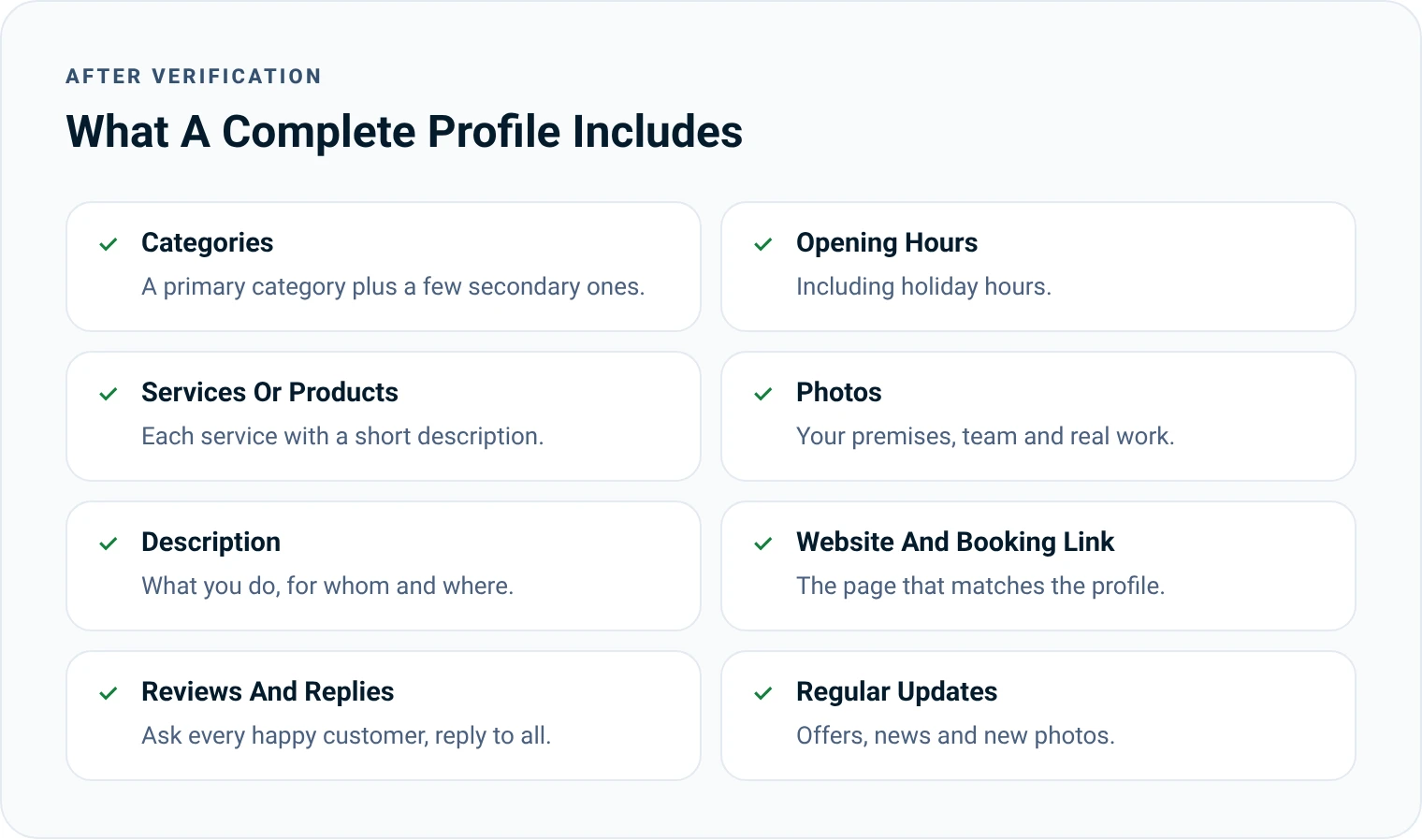
- Secondary categories: Add a few that describe other services you offer. Keep them relevant.
- Opening hours: Add your regular hours and update them for holidays.
- Services or products: List each main service with a short, plain description.
- Description: Explain what you do, who you help and where, in your own words. Avoid stuffing it with keywords.
- Photos: Upload real photos of your premises, team and work. Add new ones every month.
- Booking or quote link: If customers can book online, add the link.
Get Your First Reviews
Reviews are one of the strongest signals for local rankings, and they are what customers read before they call. Ask your best recent customers for a review as soon as your profile is live. Google gives you a short link you can send by text or email.
Reply to every review, good or bad. A polite, helpful reply to a negative review often reassures future customers more than another five-star rating would. Never offer discounts or gifts in return for reviews, because this breaks Google's rules.

Common Mistakes To Avoid
- Adding keywords to your business name. It can lead to a suspension. Our guide on what to do if your Google Business Profile is suspended covers this in detail.
- Using a virtual office or PO box address. These are not allowed.
- Creating a second profile when one already exists.
- Using a personal Google account that only one employee can access.
- Leaving the profile alone after setup. Profiles that are updated regularly with photos, posts and replies tend to perform better.
Keep Your Details Consistent
Your business name, address and phone number should be the same on your website, your Google Business Profile and other directories. When the details match everywhere, search engines and AI tools can be confident they all belong to the same business.
What To Do Next
A well set up Google Business Profile is the foundation of local SEO. To rank higher in the map results, you also need strong location pages on your website, a steady flow of reviews and links from local websites. Our SEO checklist for small businesses covers these next steps, and our local SEO service can handle the work for you.
Christopher Lier
Christopher has worked in SEO since 2015 and is the founder of LinkPanda, the agency behind SMESEO. He helps small and medium-sized businesses get more customers from Google and AI search.
More about Christopher